Zones
Network zones for grouping hosts by physical location, subnet, and flannel interface
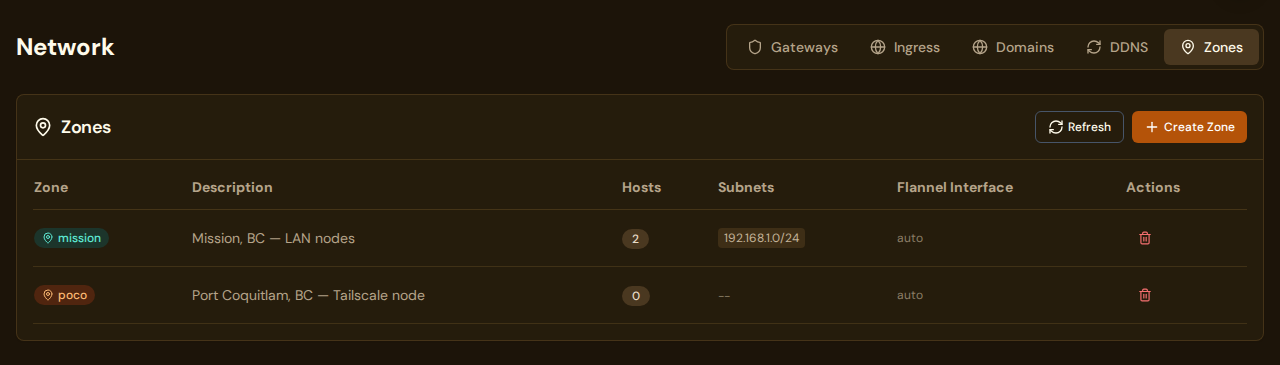
What you see
URL: /network/zones
Zones let you group hosts by physical location or network segment. A zone captures the shared properties of hosts in the same physical site — their expected subnets and the flannel network interface to use for intra-zone pod-to-pod traffic.
Zones appear in the Network section alongside Gateways, Ingress, Domains, and DDNS.
Fields / columns
| Column | Description |
|---|---|
| Zone | The zone name badge (short, lowercase identifier) |
| Description | Human-readable label for the zone (e.g. "Mission, BC — LAN nodes") |
| Hosts | Number of hosts currently assigned to this zone |
| Subnets | Expected CIDR ranges. Hosts whose IPs fall in these ranges are auto-detected as belonging to this zone |
| Flannel Interface | The network interface used for intra-zone flannel VXLAN traffic (auto = PodWarden detects it during provisioning) |
| Actions | Delete button to remove the zone |
Available actions
| Action | Where | What it does |
|---|---|---|
| Refresh | Page toolbar | Re-fetches zone list and host counts |
| Create Zone | Page toolbar | Opens the Create Zone form |
| Delete | Zone row | Removes the zone. Hosts assigned to it lose their zone membership |
| View/Edit | Click a zone row | Opens the zone detail and edit form |
Creating a zone
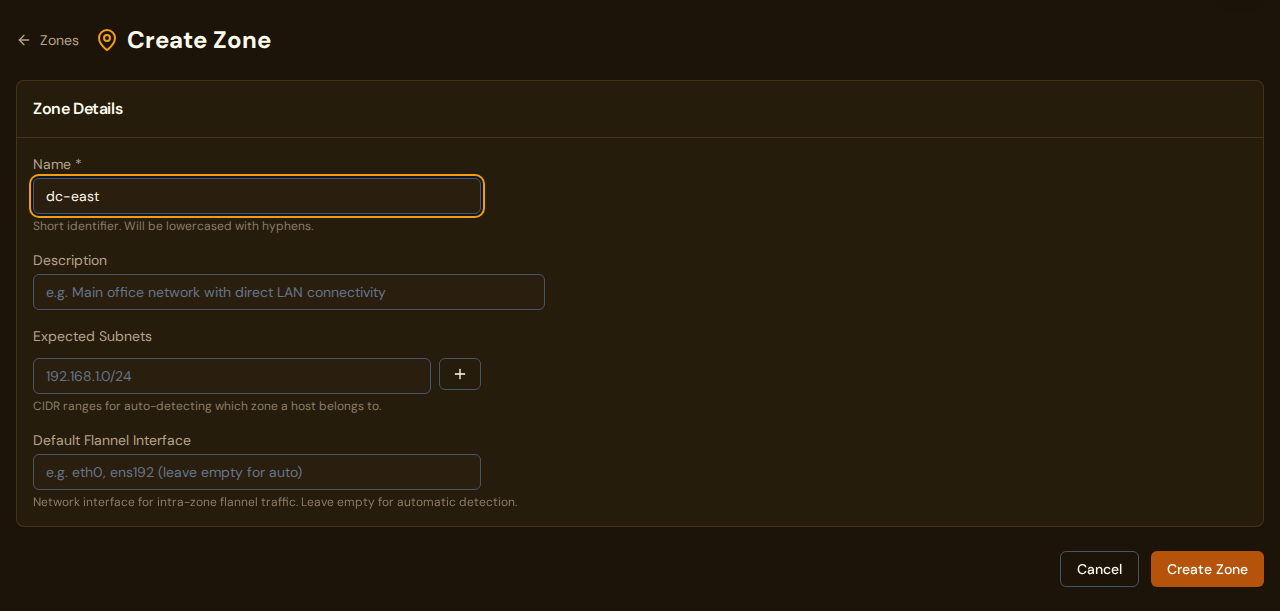
Click + Create Zone to open the zone creation form.
| Field | Required | Description |
|---|---|---|
| Name | Yes | Short identifier, lowercased with hyphens (e.g. dc-east, mission, home) |
| Description | No | Human-readable label shown in the zones list |
| Expected Subnets | No | One or more CIDR ranges (e.g. 192.168.1.0/24). PodWarden uses these to auto-assign hosts to the zone based on their detected IP |
| Default Flannel Interface | No | Leave empty for automatic detection, or specify eth0, ens192, etc. to force a specific interface for all hosts provisioned into this zone |
Zone detail and editing
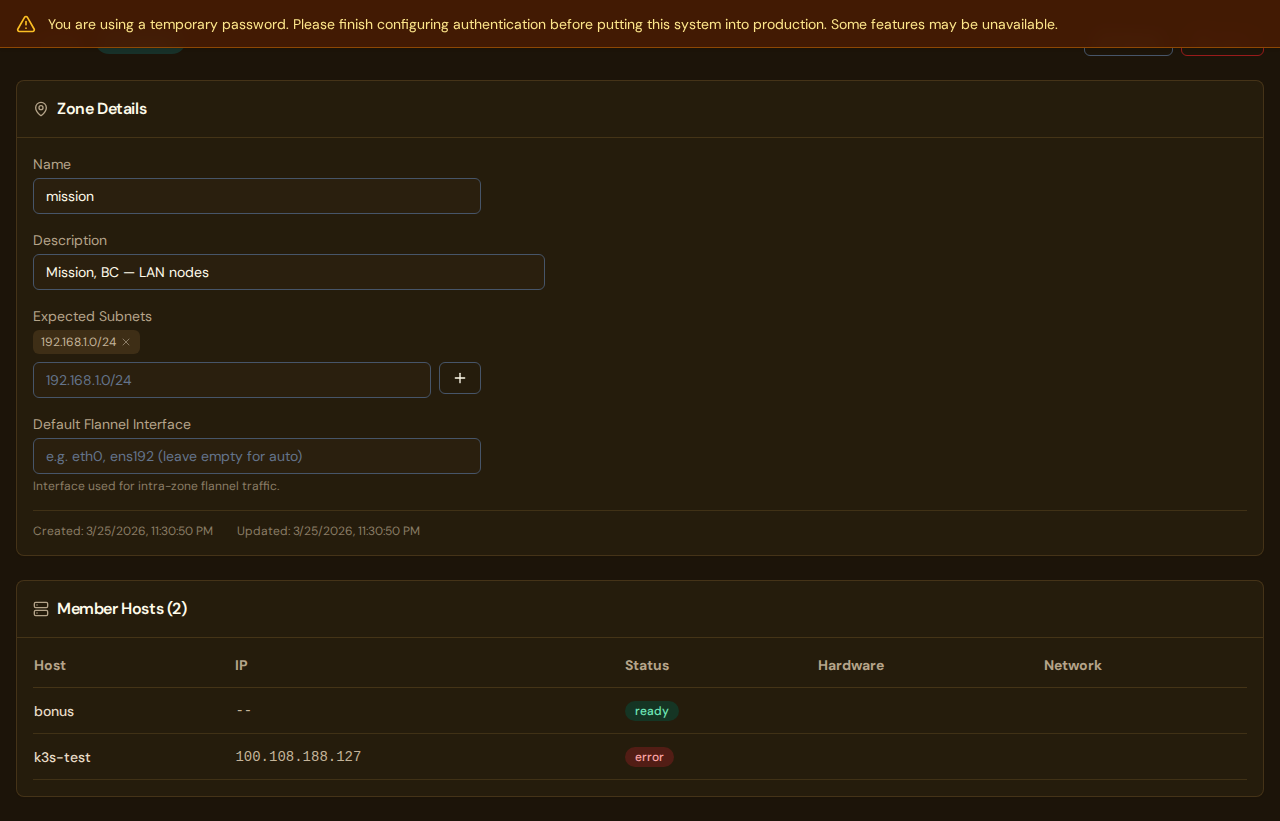
Clicking a zone row opens its detail page, which shows:
- Zone Details — the editable form (name, description, subnets, flannel interface)
- Member Hosts — table of all hosts currently assigned to this zone
The member hosts table shows:
| Column | Description |
|---|---|
| Host | Hostname link to the host detail page |
| IP | The host's primary IP address |
| Status | Host status badge (ready, error, discovered, provisioning) |
| Hardware | CPU, RAM, and GPU summary |
| Network | Network connectivity type (Mesh, LAN, etc.) |
Changes to zone fields are saved in-place — edit the form and save to update the zone.
Assigning hosts to zones
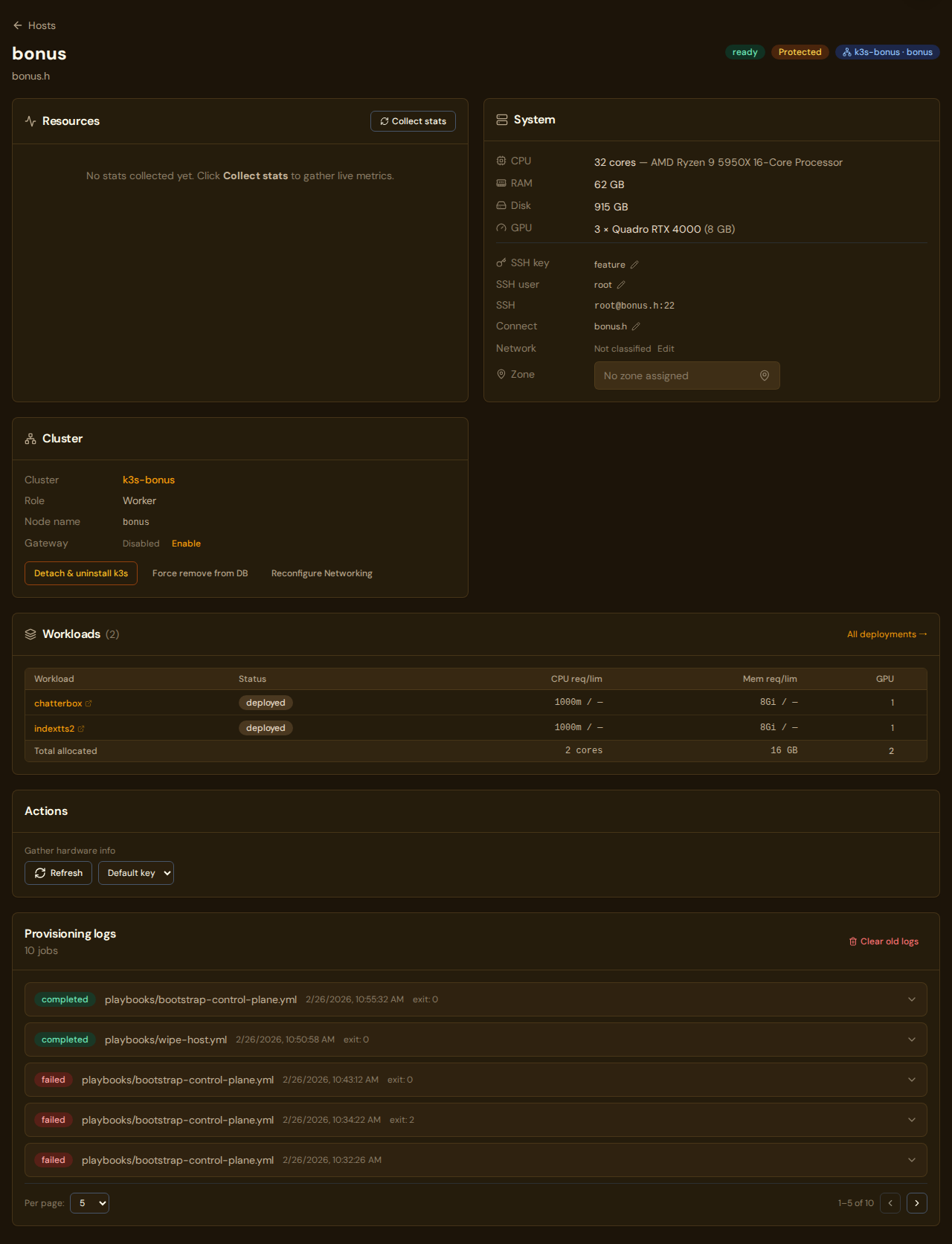
Hosts are assigned to a zone from the host detail page, not from the zone page itself. On the host detail page, find the Cluster section and use the Zone field to select which zone the host belongs to.
Alternatively, PodWarden auto-assigns a host to a zone during probing if the host's detected IP matches a zone's expected subnets.
Zone distribution in cluster detail
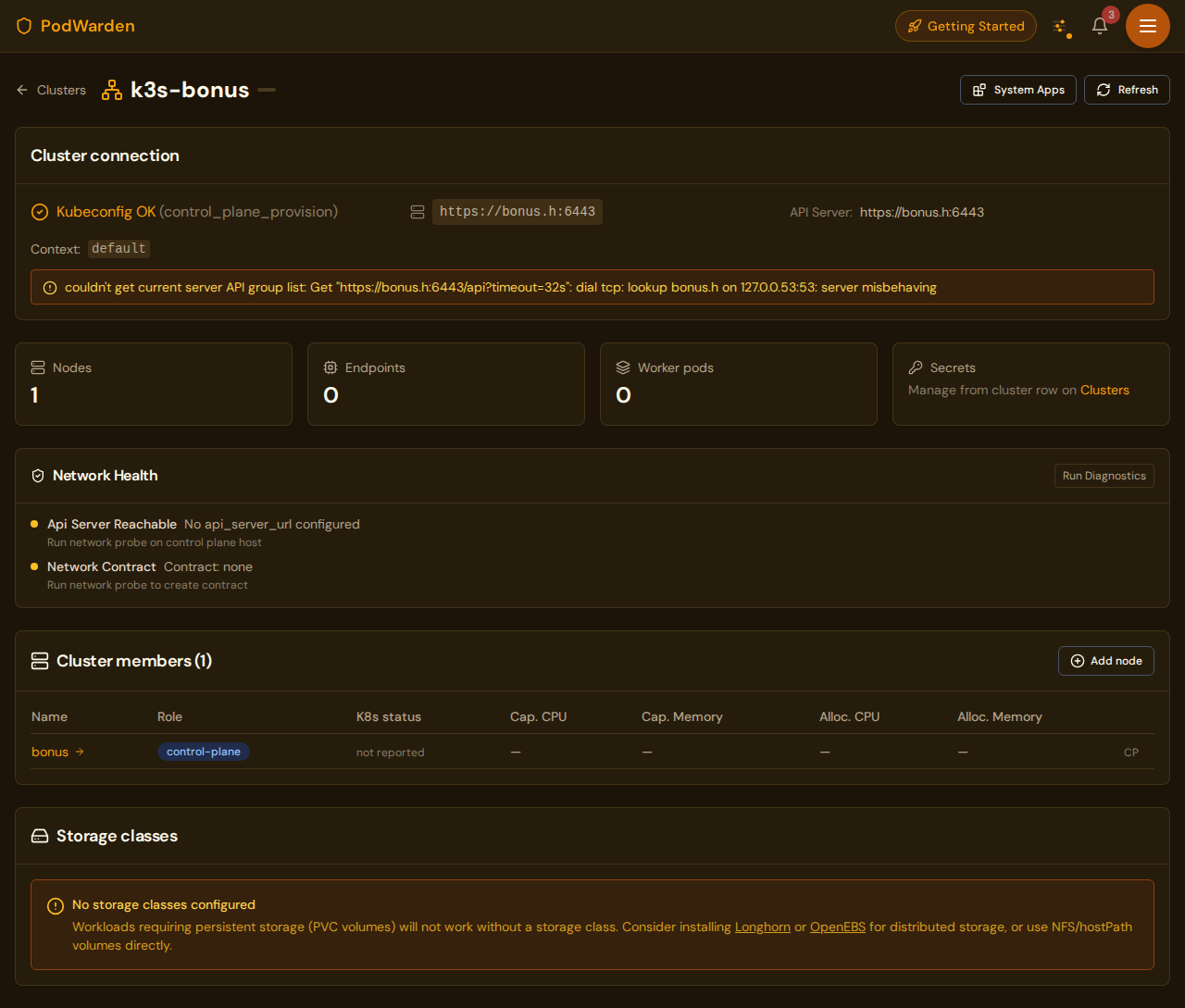
The cluster detail page shows which zone each cluster member (host) belongs to. This helps verify that your cluster has the intended geographic or network distribution.
How zones affect provisioning
When provisioning a host that belongs to a zone, PodWarden uses the zone's Default Flannel Interface setting to configure the flannel VXLAN overlay. This ensures that pod-to-pod traffic within the zone uses the correct LAN interface rather than defaulting to tailscale0.
If the zone has no default flannel interface set (auto), PodWarden detects the appropriate interface during provisioning based on the host's network configuration and its connection path to the cluster control plane.
Related docs
- Hosts — Assign hosts to zones from the host detail page
- Clusters — View zone distribution across cluster members
- Provisioning — How zones influence flannel interface selection
- Networking guide — Detailed network topology and zone architecture