User ManualPodWarden
Settings: Hub
PodWarden Hub connection for template catalog and updates
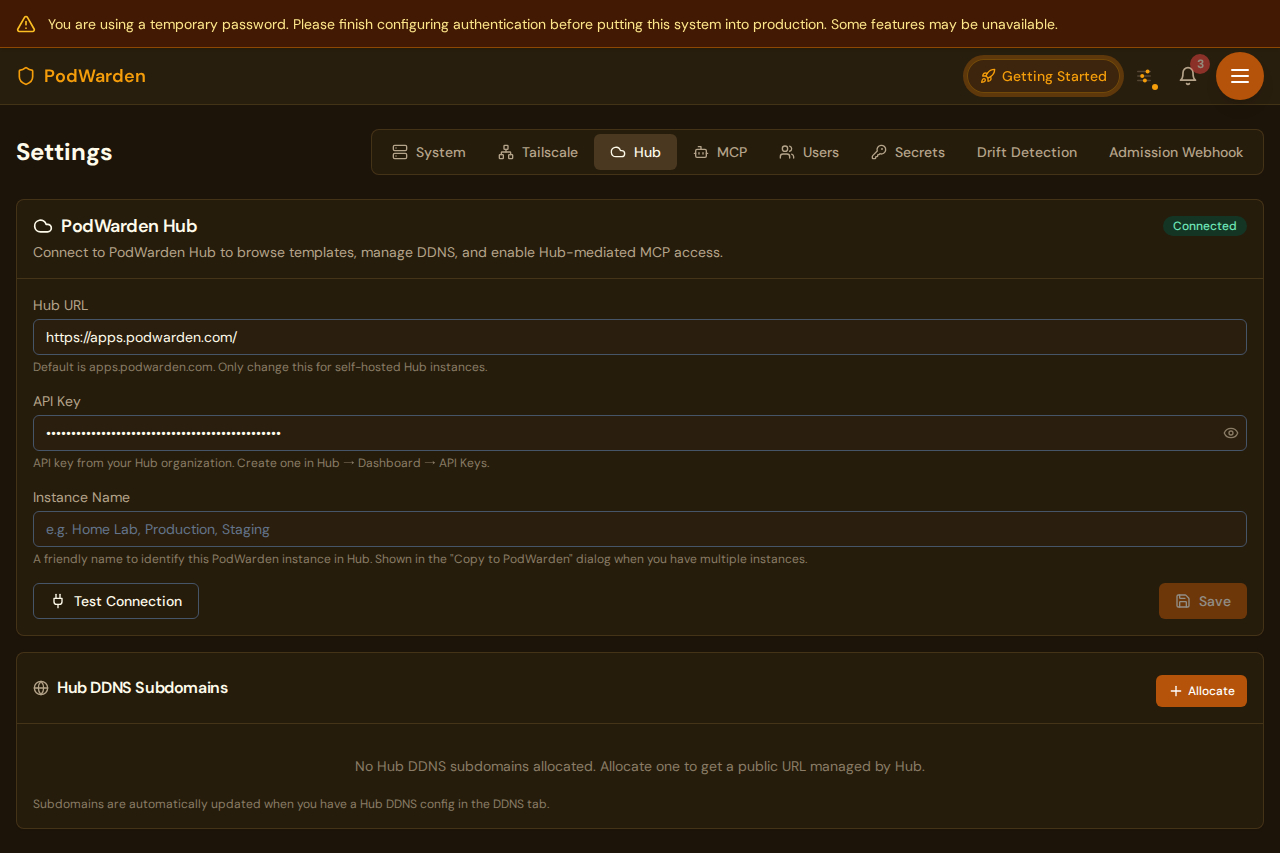
What you see
URL: /settings (Hub tab)
The Hub tab configures PodWarden's connection to PodWarden Hub -- the SaaS template catalog. When connected, you can browse and import stack templates directly from the Hub catalog into your local instance.
Fields
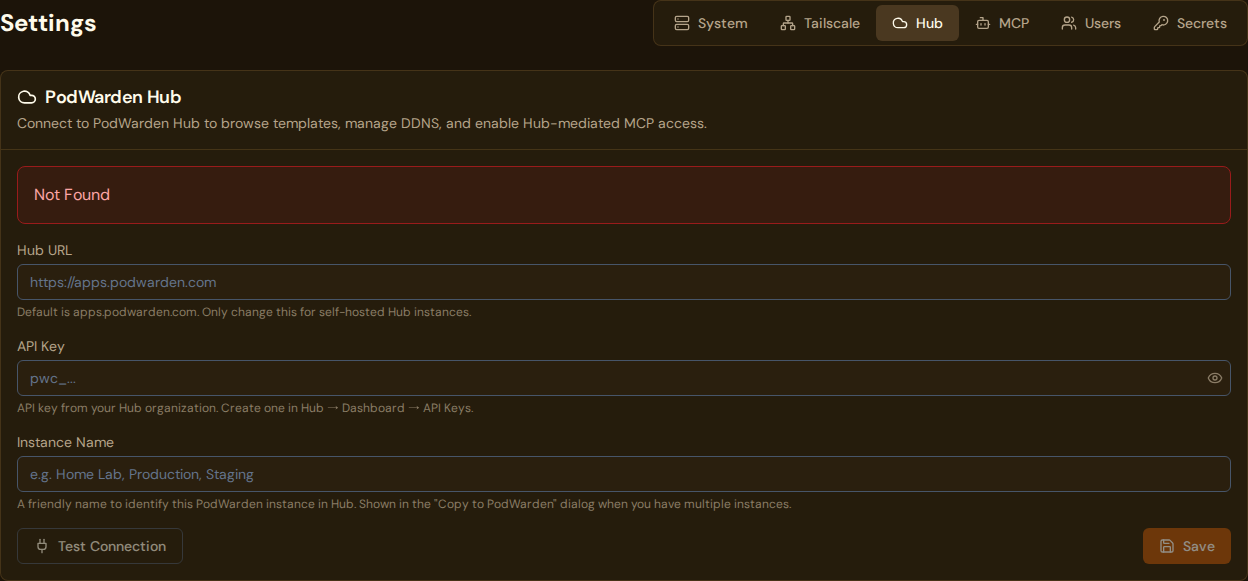
| Field | Description |
|---|---|
| Hub URL | The PodWarden Hub API endpoint (default: https://apps.podwarden.com) |
| API key | Your organization's Hub instance key (starts with pwh_) — the credential that connects this Core to Hub. Obtain this from the Hub dashboard |
| Instance Name | A friendly name for this PodWarden instance (e.g. "Home Lab", "Production", "Staging"). Shown in the Copy to PodWarden dialog when you have multiple instances connected to the same Hub organization. If left blank, falls back to the server's SERVICE_NAME environment variable. |
| Status badge | Read-only indicator updated each time you run a connection test. Shows one of three states: Connected (green — Hub is reachable and the API key is valid), Auth Failed (red — Hub is reachable but rejected the API key), or Not Tested (default — no test has been run yet) |
Available actions
| Action | What it does |
|---|---|
| Save | Persists the Hub connection settings |
| Test connection | Performs a two-step check: first verifies Hub is reachable (network/TLS), then validates the API key by calling an authenticated Hub endpoint. Reports success with organization details, or a specific error — for example, "Hub is reachable but rejected the API key" if the key is invalid or revoked. The status badge updates immediately after each test. |
What the Hub connection enables
- Import from Hub button on the Apps & Stacks page
- Check for updates on imported stacks (compares local version to Hub version)
- Access to public templates and any private templates your organization has access to
Notes
- The API key is scoped to your Hub organization. It determines which templates you can see (public + your organization's private templates).
- The key is shown only once when created on Hub. If lost, generate a new one from the Hub dashboard.
- The Hub URL should not include a trailing slash or path segments.
- If you manage multiple PodWarden instances connected to the same Hub account, set a distinct Instance Name on each one so you can tell them apart in the Hub UI.
- If Test connection shows Auth Failed, the Hub API is reachable but the API key has been revoked or is invalid. Re-issue or create a new key on the Hub API Keys page, paste it here, save, and run the test again.
Related docs
- Connecting to Hub -- Full setup guide
- Hub Dashboard -- Where to create API keys
- Apps & Stacks -- Import templates from Hub
- Settings -- System -- Previous settings tab
- Settings -- DDNS -- Next settings tab